
HOWTO: Present full-screen using Prezi and an Apple Remote [OSX]
 Powerpoint is dead. Well, at least if you want to impress people. Over at elearnr.org I’ve done a quick overview for ways in which you can present using different methods. One of these is the wonderful Prezi.
For an example of what Prezi looks like in practice, check out a sample one I used in a lesson here: http://prezi.com/5619/
As part of an interview I’ve got this week I need to do a presentation. I’m using a large image and zooming in on various parts of it during the presentation; Prezi is perfect for this!
Whilst I could use my iPhone and AirMouse to do this, it depends upon a laptop and the iPhone being on the same wi-fi network. I can’t guarantee that there will be wi-fi, so need something else. I began wondering whether I could use the Apple Remote I’ve got with my Macbook Pro. I found the answer tucked away at the bottom of this thread, but whilst it’s not hard, it’s not immediately straightforward.
Here’s what to do….
5 steps to presenting full-screen using Prezi and an Apple Remote
1. Download your Prezi presentation:
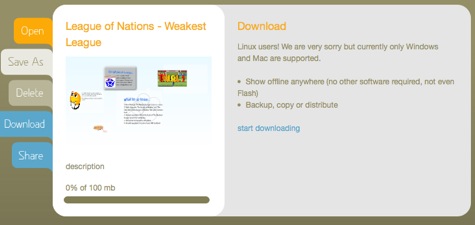
2. Download and install iRed Lite, a free program that remaps your Apple Remote to allow you to use it in the same way as a mouse.
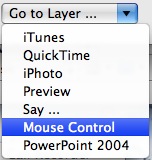
3. Open iRed Lite and choose the option ‘Mouse Control’ in the drop-down menu to the bottom-left of the window:
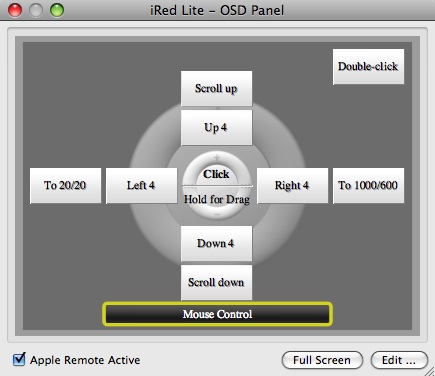
4. Hold down the Menu button on your Apple Remote until the iRed Lite OSD comes up. Click the centre Play/Pause button and your should be able to start using your Apple Remote to control the cursor!
5. Unzip and open the Prezi presentation you downloaded* and press Apple-F to go fullscreen (it’s also on the View menu). Place the cursor over the ‘next’ button in Prezi using the trackpad or mouse, as the speed of movement with the Apple Remote is rather small. Clicking the Play/Pause button on the Apple Remote should now enable you to move forward through your presentation. 😀

* If you want to present directly from the Prezi website, you’ll need a full-screen web browser. Plainview is a good, free option for this task. 🙂
![Reblog this post [with Zemanta]](http://img.zemanta.com/reblog_e.png?x-id=441cd7dd-61fc-412e-baaf-47953c8352fc)

Hey Doug,
Thanks for the solution. I’m having trouble getting it to work. It seems stuck on PowerPoint for the app. In edit I can choose the mouse control but when I close it, it shows PPT as the active layer. Any insights as to what I may be doing wrong? I’m hoping to use it Friday but need the remote to work.
No worries…a little more fiddling and I figured it out.
Glad you got it sorted, Dean. Do feed back as to whether it worked in your presentation. :-)
and how much is Prezi like the early days of PowerPoint? You know… excited by the bells and whistles but forgetting just how annoying it can be for those watching the presentation.
It isn’t that the tool is bad (PowerPoint or Prezi) but how much of what we will see will lead to “Death by Prezi”?
Oh, I agree Ryan! Everything in moderation, of course. :-)
Certainly a big caveat. However, one feature of Prezi is it’s ability to frame and focus on specific ideas. There is a storytelling component.
http://prezi.com/9303/view/#1
Oh awesome. Another reason to move away from crappy PC windows. I like that this set up allows one to present a slide show and be very inactive. Very innovative.
I hope you mean ‘interactive’ by that comment! ;-)
Hey Doug,
I’m trying it again with no luck. I’ve followed your instructions and looked at the video that was also created. It seems the best I can do is get the remote to pg up and down but that’s not the command I think I need. It seems I need the remote to be able to click. i can’t get that to happen. Not sure if you can help me but maybe there’s a common mistake i’ve made.
It’s difficult to know without seeing your exact setup, Dean. However, you might find this useful: http://blog.prezi.com/2009/05/21/video-how-to-use-apple-remote-with-prezi/
You know, you could also just setup a local ad-hoc wireless network between your laptop and phone… That and Air Mouse would give you much more flexibility. And be a lot easier to manage. It also doesn’t require the line-of-sight or have the distance limitations that the Apple Remote does.
Does AirMouse work on ad-hoc networks? It didn’t last time I tried!
Still, good idea. :-)
Thanks for this post. I have downloaded Prezi Desktop and iRed Lite. I have created a new layer for Prezi, but my iRed Lite doesn’t seem to recognize the app. Do I need to do something to Prezi Desktop to let iRed Lite take command? I have a presentation tonight that I really need the remote for.
Hi Belinda, I haven’t used the Prezi desktop app I’m afraid. Have you
tried emailing Prezi or searching for other blogs that may have advice?
You're a legend! Thanks – I've read/viewed other ways of using my Apple remote for Prezi, without success – until now.
Thank you!
No problem! :-)